

Model Gateway
A model gateway is an OpenAI-compatible endpoint that sits between Argus and a model provider such as OpenAI. The gateway holds the provider's API key, and Argus reaches the gateway with a separate key of its own. Use one when you don't want the provider key sitting on each person's computer, or when your team wants a single place to manage which models are allowed, how much they cost and who can use them.
Argus talks to a gateway through its OpenAI provider: pick OpenAI as the provider and change the base URL to the gateway's address. Anything that speaks the OpenAI chat-completions format works. The examples here use LiteLLM, a common open source gateway, running in Docker.
Two ways to run it
- On your own computer. Run the gateway in Docker on your machine. The provider key lives in the container, and Argus reaches it at a local address. This is the quickest way to try the setup, or to keep your own key out of Argus's settings.
- On a shared server. Your team runs one gateway on a server everyone reaches. The provider key lives on that server, not on your computer, so as an end user you never hold it. Whoever runs the gateway gives you its address and a gateway key, and you skip ahead to Point Argus at the gateway.
Two keys, kept separate
A gateway setup has two keys, and they never mix:
- The provider key (your OpenAI key) lives only in the gateway. The gateway is the only thing that talks to OpenAI, so it's the only thing that needs it.
- The gateway key is what Argus sends to reach the gateway. To Argus the gateway is just an OpenAI-compatible endpoint, and this is that endpoint's key.
Argus never receives or stores the provider key. It only ever holds the gateway key. On a shared server the provider key stays on the server, remote from you.
Run a gateway on your computer
You need Docker Desktop (macOS or Windows) or Docker Engine (Linux), and an OpenAI API key.
Create a folder with three files.
config.yaml maps the model name Argus asks for to the upstream model and the provider key:
model_list:
  - model_name: argus-model
    litellm_params:
      model: openai/gpt-5.6-luna
      api_key: os.environ/OPENAI_API_KEY
argus-model is the name Argus requests. To change models later without touching Argus, keep that name and change only the model: line.
.env holds the two keys and pins the gateway version:
OPENAI_API_KEY=sk-your-openai-key
LITELLM_MASTER_KEY=sk-your-generated-gateway-key
LITELLM_IMAGE=docker.litellm.ai/berriai/litellm:main-v1.79.0-stable
Generate a gateway key with printf 'sk-%s\n' "$(openssl rand -hex 32)". Keep this file out of version control.
compose.yaml runs the container:
services:
  litellm:
    image: ${LITELLM_IMAGE}
    container_name: litellm
    restart: unless-stopped
    env_file:
      - .env
    volumes:
      - ./config.yaml:/app/config.yaml:ro
    command:
      - --config
      - /app/config.yaml
      - --port
      - "4000"
    ports:
      - "127.0.0.1:4000:4000"
The 127.0.0.1 in the port line keeps the gateway reachable only from your own computer, not from others on your network.
Start it:
docker compose up -dCheck that it's ready:
curl http://127.0.0.1:4000/health/readinessThen send a test request, using the gateway key as the bearer token:
curl http://127.0.0.1:4000/v1/chat/completions \
  -H "Authorization: Bearer sk-your-generated-gateway-key" \
  -H "Content-Type: application/json" \
  -d '{"model":"argus-model","messages":[{"role":"user","content":"Say hello"}]}'
A JSON reply means the gateway reached OpenAI. Get this working before you configure Argus, so a later problem is clearly on the Argus side.
Point Argus at the gateway
In the app, open Settings, then Sessions, and set the model fields:
| Field | Value |
|---|---|
| Model provider | OpenAI |
| Base URL | The gateway address ending in /v1. On your computer that's http://127.0.0.1:4000/v1; on a shared server, the address your team gives you. |
| Model | The model name from the gateway config, argus-model above. |
| API key | The gateway key, not your OpenAI key. Argus stores it in your operating system's secure store. |
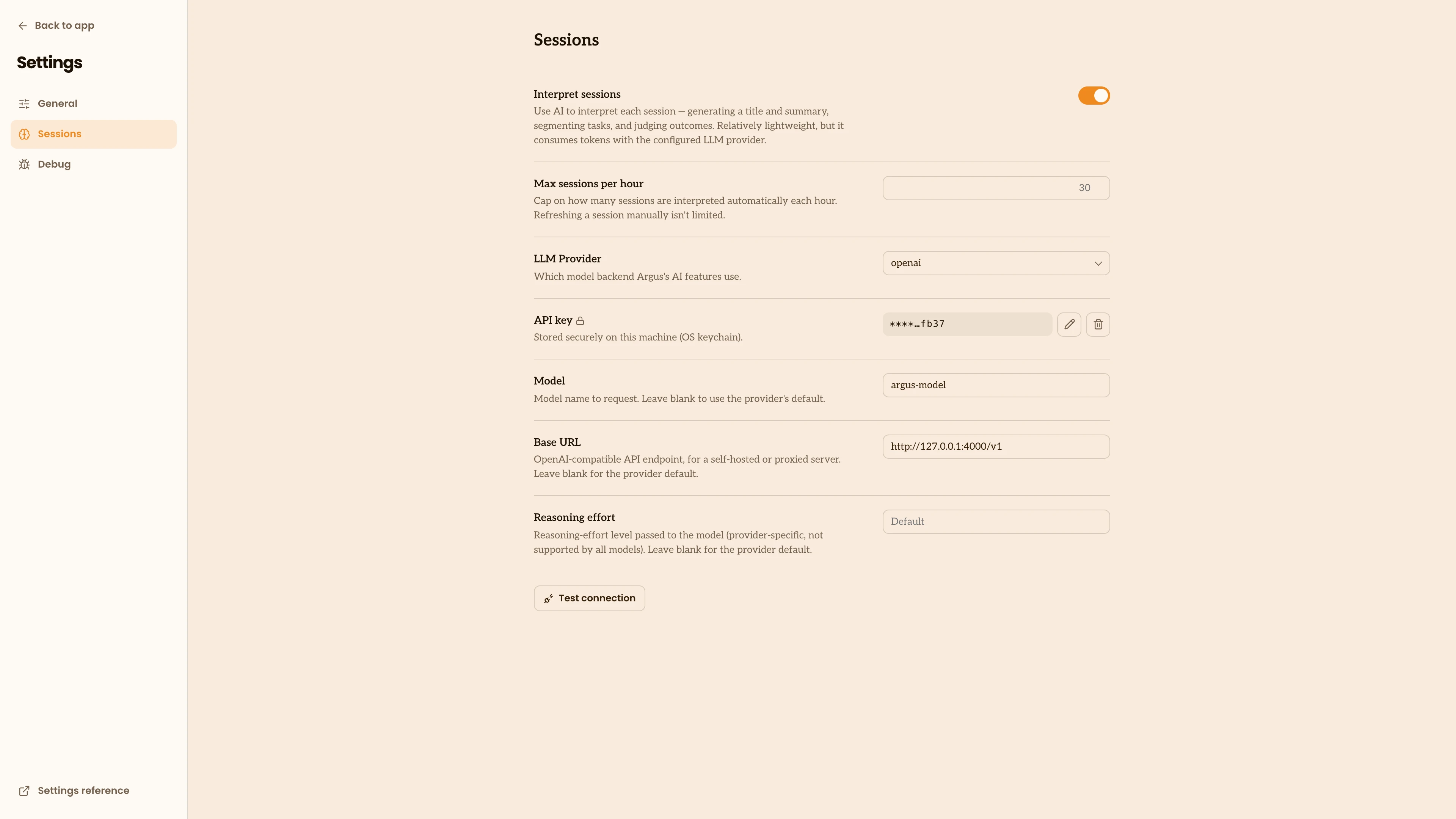
Use Test connection to confirm it works. Keep /v1 at the end of the base URL; Argus adds /chat/completions itself.
From the command line instead:
npx @agentdeploymentco/argus config set llm.provider openai
npx @agentdeploymentco/argus config set llm.model argus-model
npx @agentdeploymentco/argus config set llm.baseUrl http://127.0.0.1:4000/v1
npx @agentdeploymentco/argus secret set OPENAI_API_KEY   # paste the gateway key
Already using OpenAI on this computer?
If OPENAI_API_KEY is set in the environment that runs Argus (for example, exported in your shell profile), that value wins over the gateway key you stored, and Argus sends your real OpenAI key to the gateway, which rejects it. Point Argus at a different key name so the two can't collide:
npx @agentdeploymentco/argus config set llm.apiKeyEnv LITELLM_API_KEY
export LITELLM_API_KEY=sk-your-generated-gateway-key
Shared gateways
For a team, run one gateway on a shared server rather than on each person's computer. The provider key lives on that server, so nobody's machine holds it, and you manage models, spending limits and access in one place. Give each person the server's base URL and a gateway key, and they follow the same steps under Point Argus at the gateway with the server's address in place of the local one.
If your organization manages computers with a device-management tool, you can push the provider, model and base URL to everyone through managed settings, leaving only the per-person gateway key to set. See the Settings Reference for the exact keys.