

Settings
Configure Argus from inside the app. The gear icon at the bottom of the left nav opens Settings, grouped into a few categories.
For the exact argus.json keys, environment variables, command flags and managed-settings behavior, see the Settings Reference.
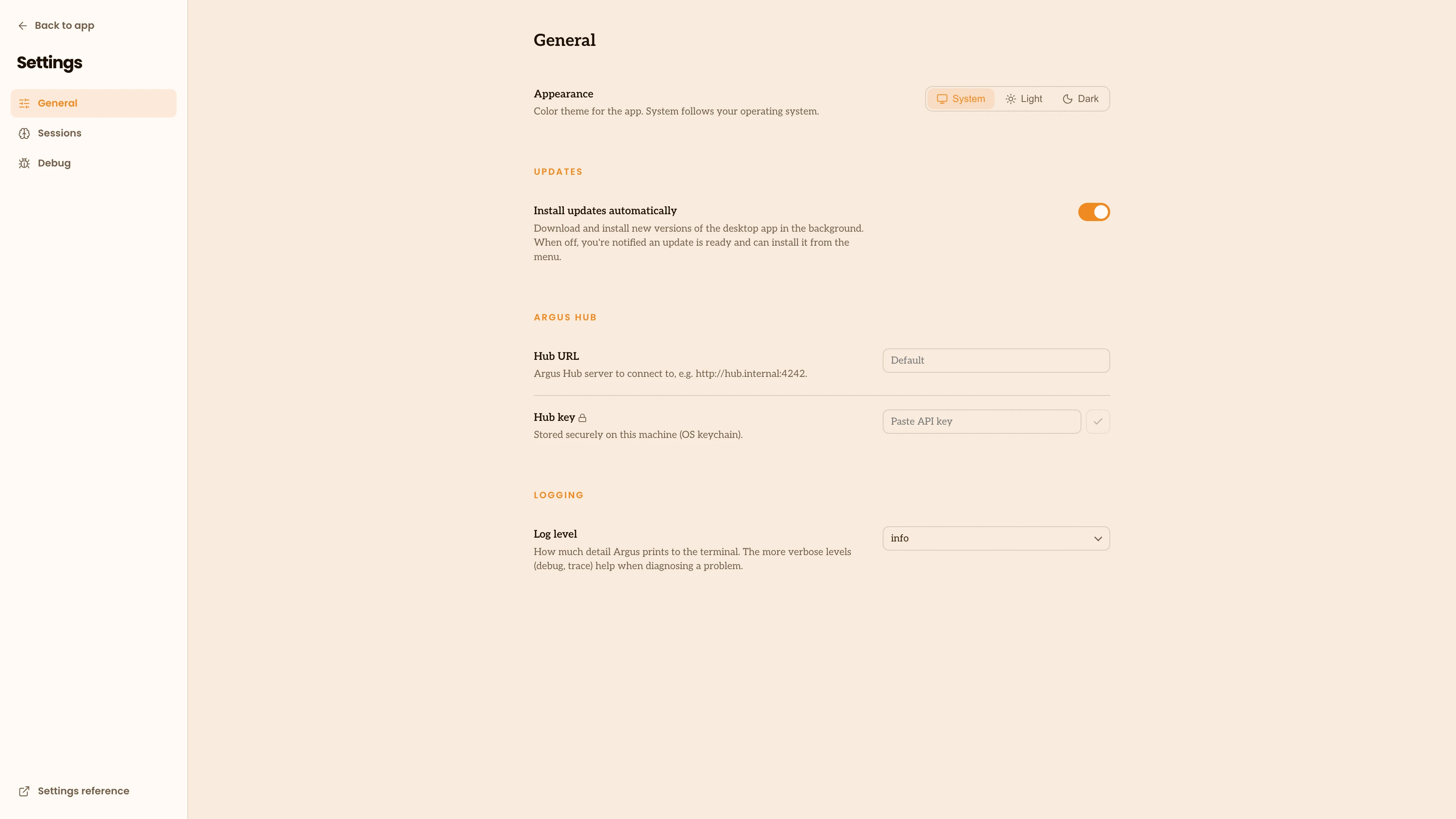
General
- Appearance sets the color theme: follow your system, or force light or dark.
- Startup controls whether the desktop app starts automatically when you sign in to this computer. It's on by default. If you turn Argus off in your computer's own startup settings instead (Open at Login on macOS, Startup apps in Windows Task Manager), Argus respects that choice, and you turn it back on in the same place.
- Updates controls whether the desktop app installs new versions automatically. With it off, Argus tells you when an update is ready and you install it from the menu bar. Share update metrics is separate: it lets those update checks say which install they came from, so we can count how many people are running Argus. It sends a random identifier for your copy and none of your session data, and turning it off makes the checks anonymous. See Privacy and Security for what that identifier is.
- Argus Hub holds the address of your team's Argus Hub and the key used to sync to it. Leave these blank if you aren't using a Hub.
- Logging sets how much detail Argus prints to the terminal, from
error(least) throughwarn,info,debug, andtrace(most). The default isinfo. A change takes effect right away, without a restart. Setting theARGUS_LOG_LEVELenvironment variable overrides this, and the app shows a note when it does.
Sessions
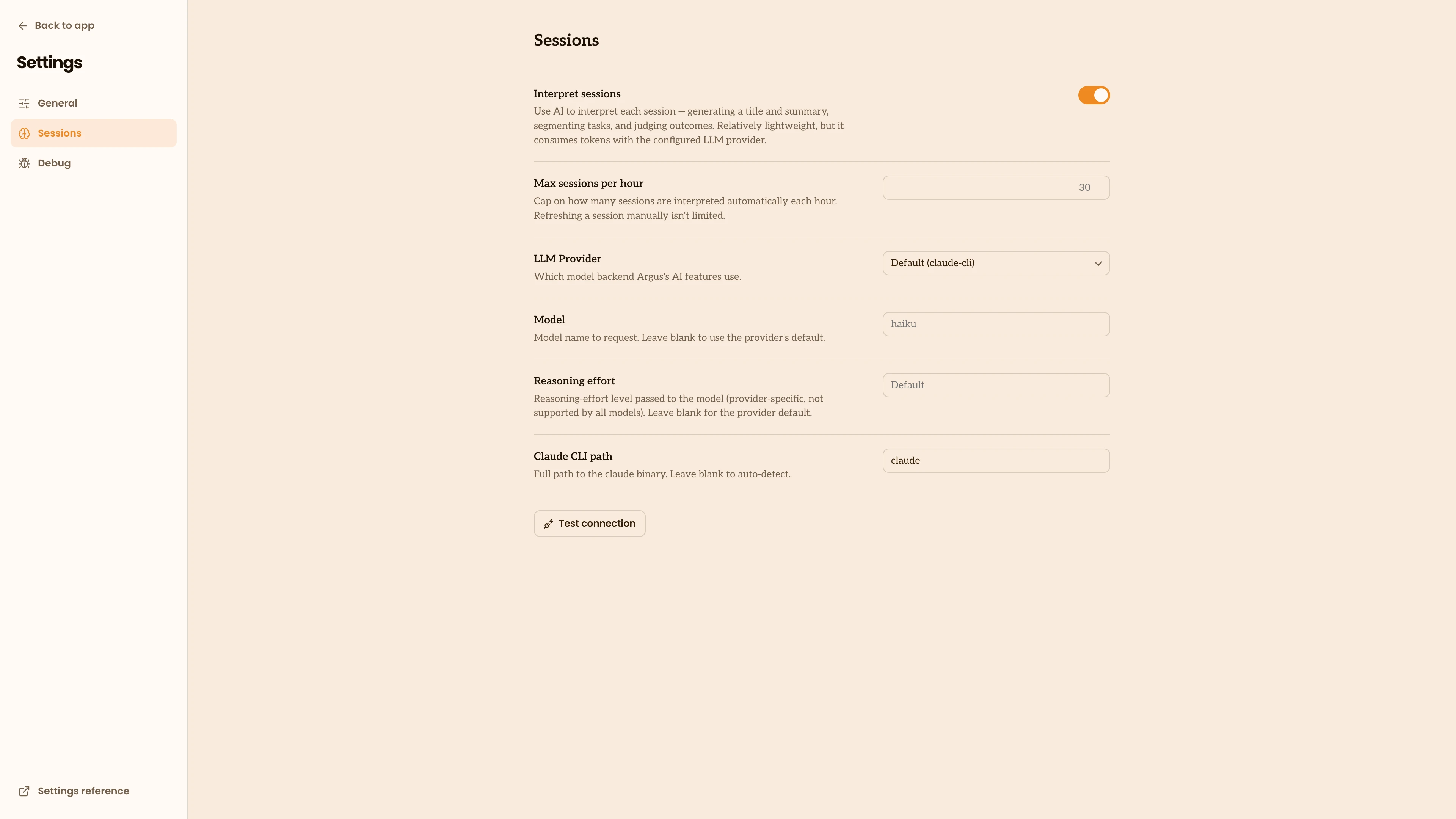
- Interpret sessions turns on session interpretation, the pass that gives each session a title and summary, groups it into the tasks you worked on, and judges how each one went. It's on by default. This is the one thing Argus does with an outside model, so turning it on reveals the model settings below. See Tasks for what it captures and how to choose a provider.
- Max sessions per hour caps how many sessions Argus interprets automatically each hour. Refreshing a session by hand isn't limited.
- Model provider, Model, Reasoning effort and Claude CLI path choose which model backend does the interpretation and how hard it works. Some fields appear only for the provider that uses them: the Claude CLI path for the local Claude CLI, or a Command to run for the Command provider. The cheap defaults (Claude Haiku on the local Claude CLI) are good enough out of the box; for sharper titles, summaries, and outcome calls, point Argus at a stronger model such as Claude Sonnet or Opus. Argus stores any API key in your operating system's secure store, never in its settings file, and a Test connection button confirms it works. To keep the provider key off your computer, or run one shared backend for a team, point Argus at a model gateway instead.
- Reasoning effort is passed straight through to the provider, so use the value that provider expects:
low,medium,high(andxhigh,maxon the newest models) for Claude and OpenAI; a thinking level for Gemini. Leave it blank for the provider default. The cheapest default models don't accept an effort setting, so only set it once you've chosen a model that supports it.
Debug
A read-only view of where Argus reads from and writes to: its settings, the folders it's watching and how it resolved them. Useful when something isn't showing up and you want to see what Argus sees.
From the command line
The app surfaces the everyday settings. A few advanced ones are set from the command line instead, including text retention, which controls whether Argus keeps the text of your prompts and responses on your machine (it stays local either way). See the CLI Reference and Settings Reference.
Managed by your organization
If your organization manages this computer with a device-management tool (an MDM such as Jamf or Kandji), it can set Argus settings for everyone. A managed setting always wins: the app shows "Managed by your organization" next to it, and changing it here or from the command line has no effect. Ask your IT team if you need one changed.