

Sessions
The Sessions view is where you see how you actually work with your agents, one session at a time, rather than as totals. Find a session, open it, and read what happened in it.
Search and filters
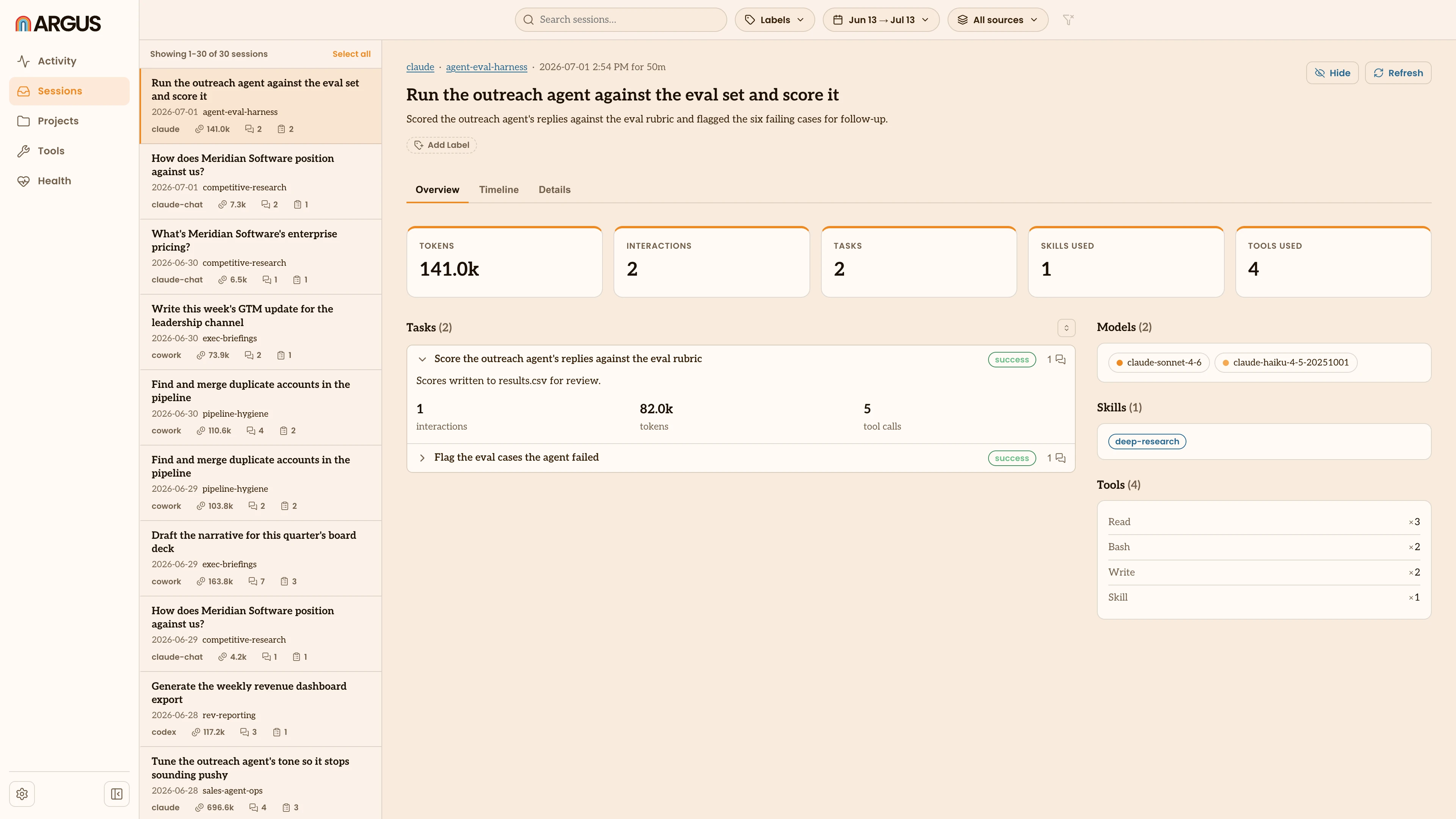
The list down the left shows your sessions, newest first. Each entry shows its title, when it ran, its project and its token, interaction and task counts. The toolbar across the top narrows the list:
- Search matches titles, projects and sources, and (when you keep session text, the default) the words inside your conversations and the summaries Argus writes. A match shows a short snippet with the hit highlighted.
- Labels narrows to the sessions carrying the labels you pick. Choose match any or match all when you pick more than one.
- Date limits the list to a range, with quick presets or your own From and To dates.
- Sources limits the list to a single agent.
The reset button next to the filters clears them back to the last 30 days and all sources. If you open Sessions by clicking a project or source on another view, the list arrives already narrowed to it, and the project appears as a pill you can remove.
TIP
Press / or Cmd+K (Ctrl+K on Windows) to jump to the search box. With a session open, j and k step to the next and previous session in the list.
Labeling and hiding sessions
Two ways to organize the list: label the sessions you want to group, and hide the ones you don't want to see.
- Labels. Open a session and use Add Label to tag it. Create a new label on the spot or pick one you've used before, and rename or delete labels from the same menu. Labels show as chips on the session and in the list, and the toolbar's Labels filter narrows to them.
- Hiding. The Hide button on a session removes it from the list and from search. Open a hidden session and Unhide it to bring it back.
Bulk actions
Hold Cmd (or Ctrl) and click to pick sessions one at a time, or hold Shift and click to select a range. Select all picks every session in view and offers to extend to every session that matches your current filter. With two or more selected, the right pane switches to bulk actions, so you can label them all at once or hide them all.
Inside a session
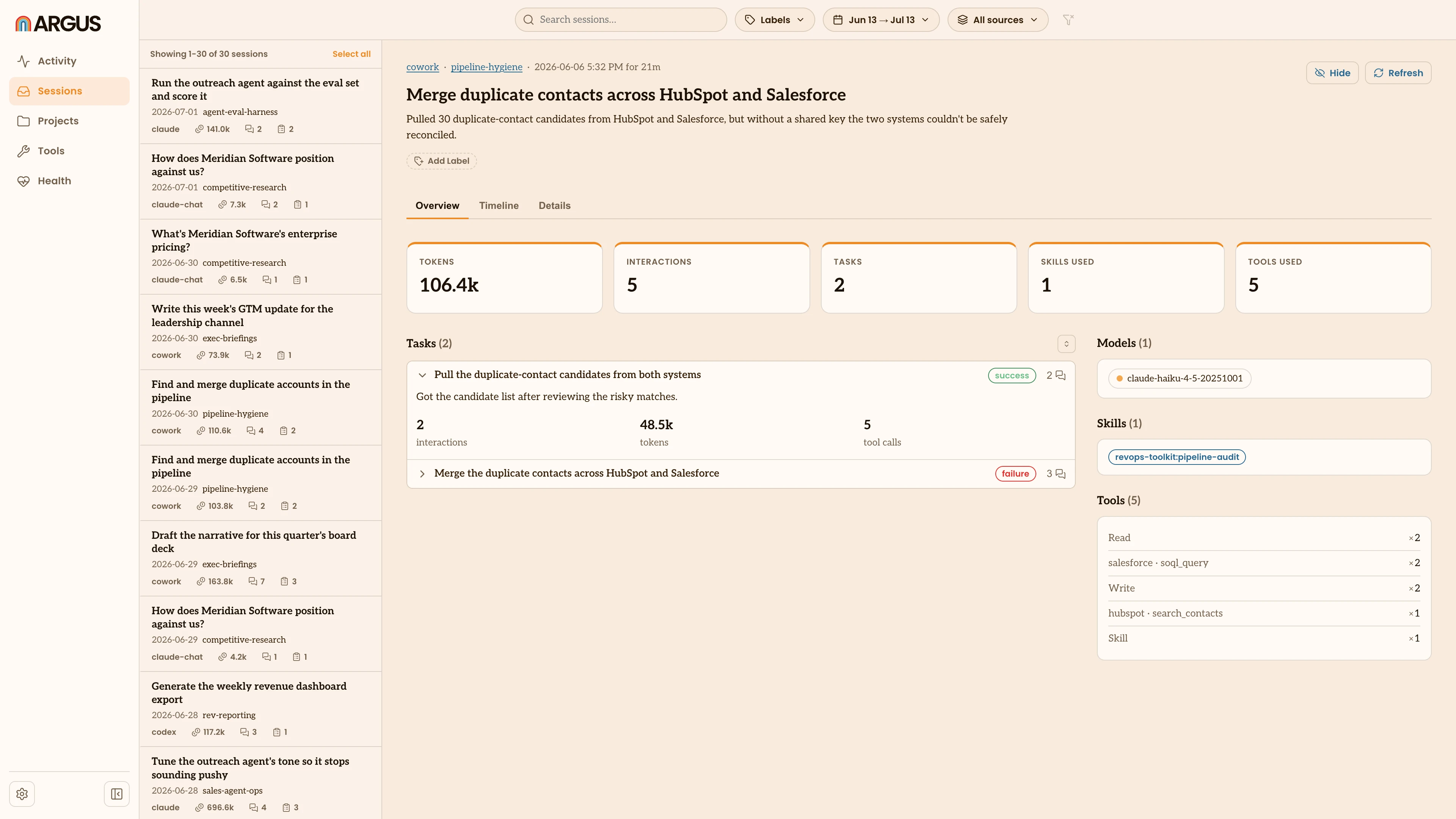
Open a session and the right pane shows what Argus found in it. The top of the pane has its source, project, when it ran and how long it lasted, then the title and a short summary. Below that are three tabs.
Overview
Stat cards summarize the session: total tokens, interactions, tasks (once interpreted), skills used and tools used. Below them:
- Tasks breaks the session into the tasks you worked on, each with how it turned out. They appear once you turn on task interpretation in Settings; until then this reads "Interpretation pending." Click a task to expand it in place, or open it in the Timeline to read that stretch of the session. See Tasks.
- Models, Skills and Tools list what the session drew on, with the tools it called most.
Timeline
The Timeline reads the session back in order, grouped into the tasks you worked on, so you can follow the back-and-forth between you and the agent.
Details
The Details tab holds the rest: the friction signals in the session (interruptions, tool actions you declined, compactions and turn timings, for Claude sessions), the full table of tools the session used and the files the agent read or changed.
Credential warnings
Argus checks your sessions for credentials pasted into a conversation, so you can rotate anything real. The check runs on your own computer as part of indexing. It's pattern matching against well-known credential shapes, with no model reading your text and nothing sent anywhere.
A session that looks like it holds a credential opens with a warning above its tabs. Each line says which interaction it turned up in, what kind of credential it looks like (an AWS access key, a GitHub token, a private key and so on), a few characters of the value and whether it sat in your prompt or the agent's reply. Those few characters are all Argus keeps, enough to tell you which key it was and not enough to use it.
Click a line to jump to that interaction in the Timeline, where the turn carries the same marker on the half it matched. A marker points at the first place a credential appeared, so a key you pasted once and the agent repeated later shows up once.
- Dismiss hides the warning once you've dealt with it, leaving a muted line with Show again. It covers the findings you saw, so a later index that turns up something different warns you again. The Timeline markers stay either way.
- In the list, a session with an undismissed warning carries a red count alongside its token and task counts.
- Flagged narrows the list to those sessions, and arrives as a pill you can remove. The credential recommendation on Activity links straight to it. It's the one filter that includes sessions you've hidden, each marked with an eye icon on the row.
Treat a warning as a reason to look rather than proof of a leak. Argus favors precision over reach, so it rarely flags something harmless, and it stays quiet about credential shapes it doesn't recognize.
Refresh
If a session has grown since Argus last indexed it, the Refresh button at the top re-reads it from disk and updates everything on the page.